
This guide is prepared for Team Leaders. Not a Team Leader? Read our Teams guide for Volunteers.
Team Setup
All Teams have these default channels added:
- General - General, volunteer related chat
- Announcements - For important announcements
- Lounge - For off-topic chat
- Team Leaders - Private channel for team leaders of your function and Crisis Staff only
Team Leaders are automatically added to the "Team Leaders @ Crisis at Christmas 2020" Team where you can talk to other team leaders and Crisis Staff in private.
Managing Team Settings
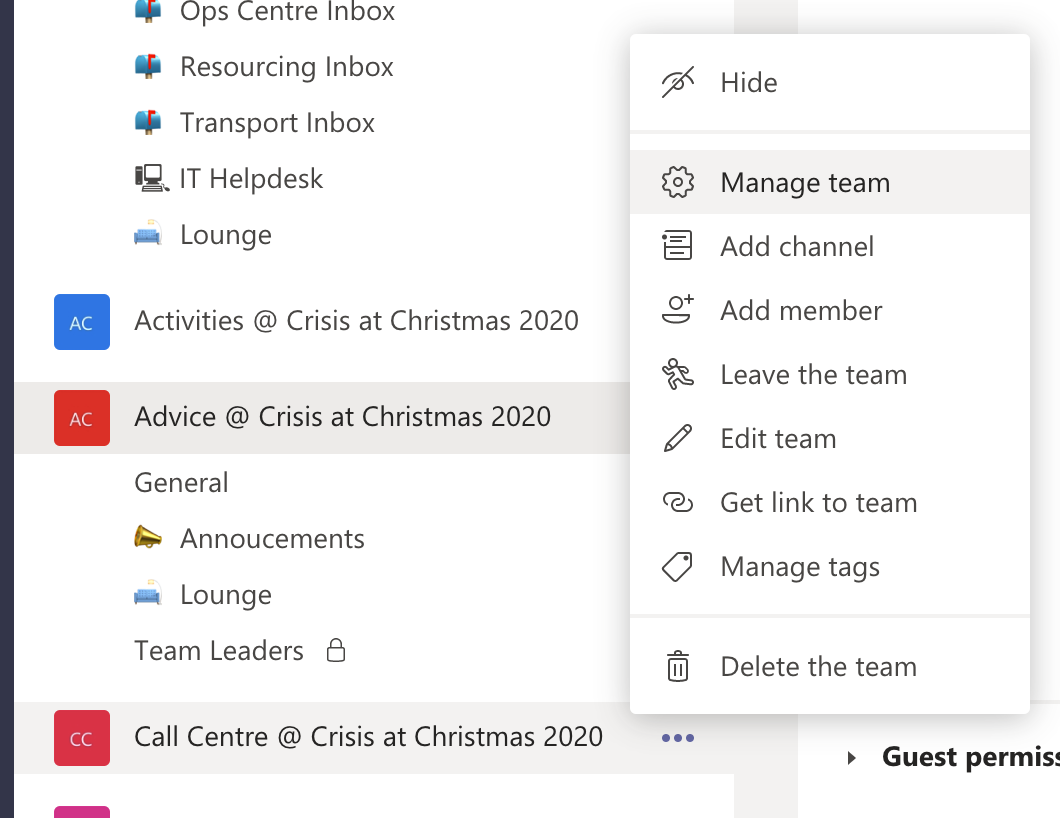
To manage your Team's settings, click on the dots next to your Team name, then select "Manage team".
Team Members
All volunteers belonging to your function should have been added to the team. If you notice any missing volunteers, DO NOT add them yourself; instead contact the Aimar Support Centre for assistance.
Adding New Channels
Members cannot create channels. You as owner of the team may add new channels to suit your team's operational needs.
To add a new Channel, follow the instructions here.
Notes:
- Channels are organised alphabetically, with the exception of the General channel which is always at the top of the list. To force an order, you can add a number before the channel name (e.g. "1. Guest Issues")
- Make sure to check "Automatically show this channel in everyone’s channel list" to ensure everybody on the Team can see the channel.
- Before adding a new channel, consider whether it is necessary. Too many channels will clutter the volunteer's channel list and may lead to missed important messages. Consider replacing a channel with a conversation or Direct Messages (DMs) if the discussion is temporary.
- If you add private channels, make sure to add all Team Leader volunteers as owners. Team Leaders who are not members of the private channel can see the channel name, but cannot access its contents by default.
Channel Moderation
Depending on the nature of the channel, you may want to turn on Channel Moderation so that only Owners (or moderators of your choice) can create conversations (but members can still reply to them). This is turned on by default in the Announcements channel.
To access Channel Moderation, follow this guide.
Special Conversation Types
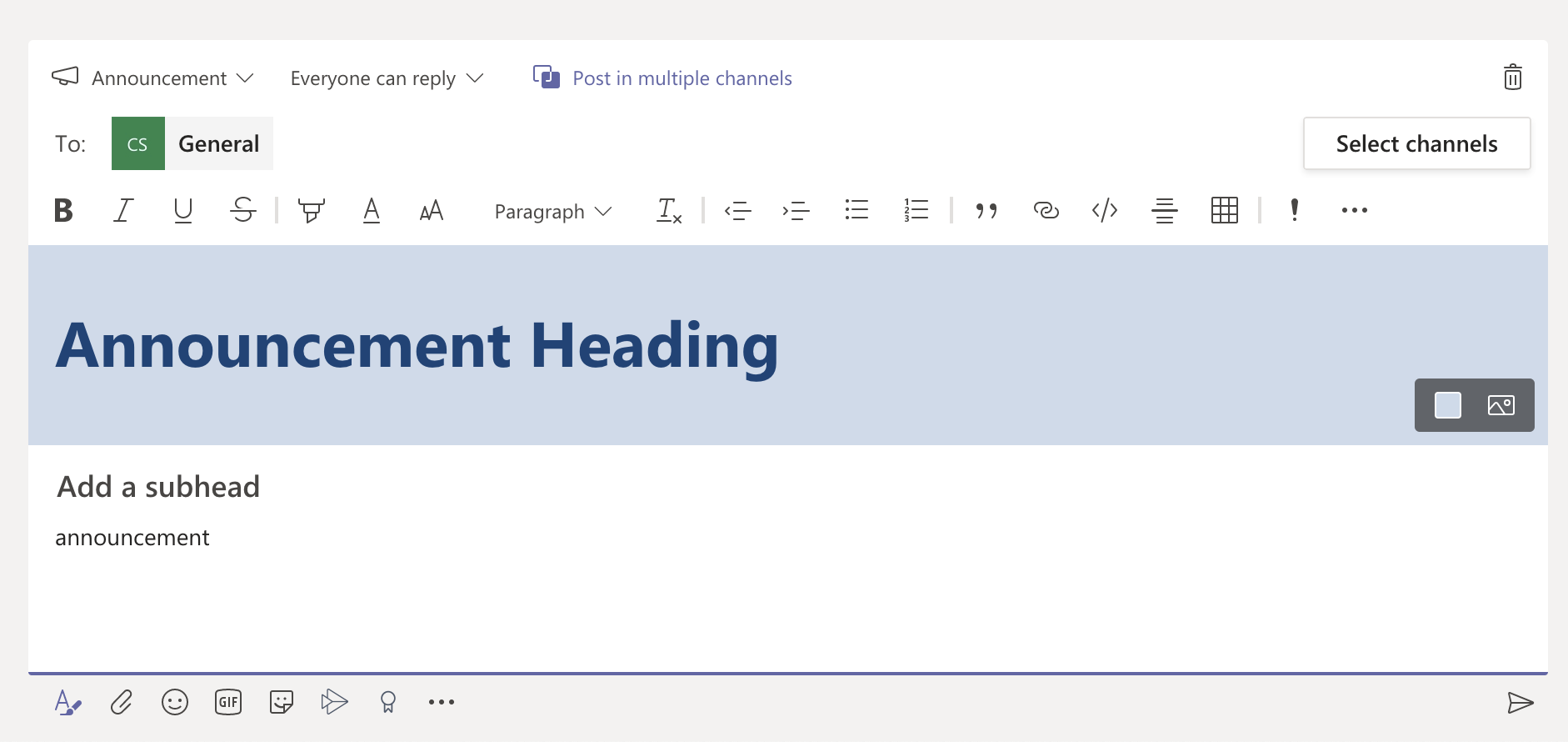
Teams has options to customise your message. You can access them by clicking the A? button on the bottom left.
There are 3 options you can change:
- New Conversation / Announcement - Choose the latter to create Announcements, which gives you a large heading and special formatting to make it stand out.
- Everyone can reply / You and moderators can reply - Choose the latter to limit who can reply to the conversation.
- Post in multiple channels - Choose this option to post your message in more than one channel.
Message Pinning
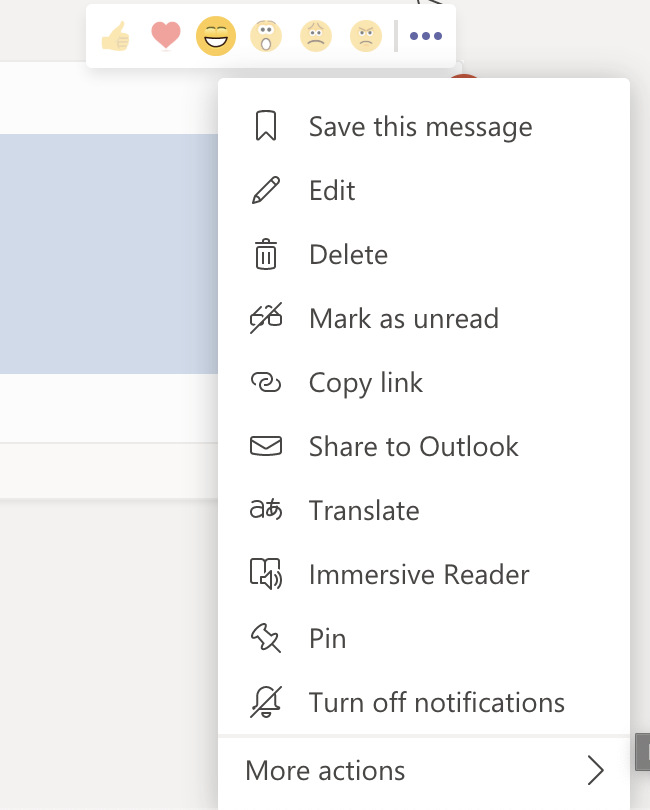
You can pin your messages to the top of the channel. To access this option, hover on the message, click on the 3 dots and choose "Pin".
Mentioning
"@mentioning" is a great way to alert a volunteer or a group. To @mention somebody, type in the character @ followed by the name of the volunteer or group. Teams will automatically populate a list of suggested entries; click on one of the desired entries.
You can assign "tags" to volunteers to be able to @mention them all at once. Learn how to use this feature here. By default this is set up for Team Leaders.
Notes:
- By default only Owners of the team (Team Leader volunteers and Crisis Staff) can @mention groups. Please use this sparingly as this will notify everybody on the team!
- If you only want to notify select volunteers, consider assigning tags to specific volunteers.
Pinning documents as Tabs
To pin any documents in Files as separate Tabs, follow this guide.
Creating Reference Guides
Besides the Shift Office Manual and the Shift Book, you may want to create a place for important information related only to your function. We recommend creating a OneNote notebook for this purpose.
To create a OneNote notebook, go to the Files tab in a channel (e.g. General), click on New, then click "OneNote Notebook" from the dropdown. Give it a name and press "Create".
Notes:
- OneNote Online only support searching within one Section, therefore we recommend only using one section to store all pages.
- Consider pinning your OneNote notebook as a Tab in the General channel for quick and easy access.
- We don't recommend using Team's built-in Wiki as it is not searchable.